
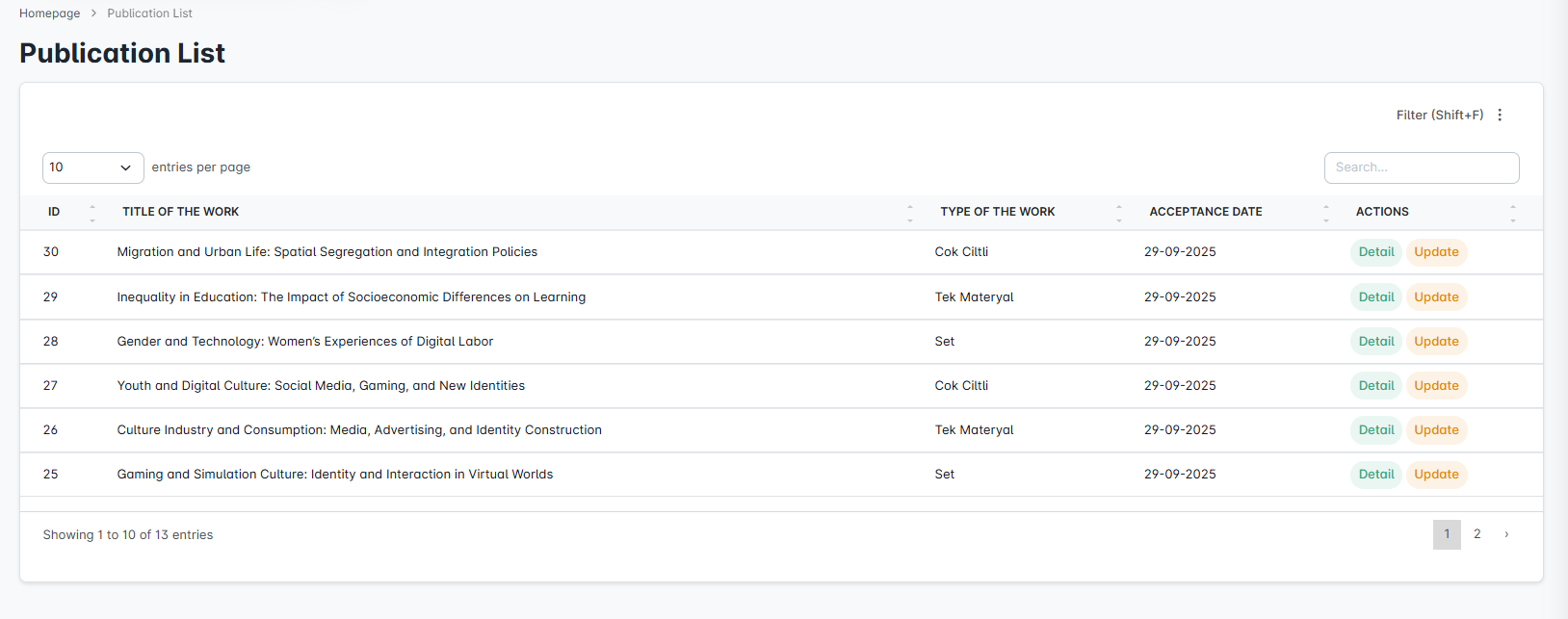
This screen displays all submissions that have been accepted into the system and transitioned to publication status. For a submission to move into publication status, it must be approved and accompanied by an acceptance letter. Each publication is shown with essential information such as ID, title, type, and acceptance date. From the list, users can access publication details or perform update actions.
The purpose is to enable administrators and users to quickly access and manage existing publications.
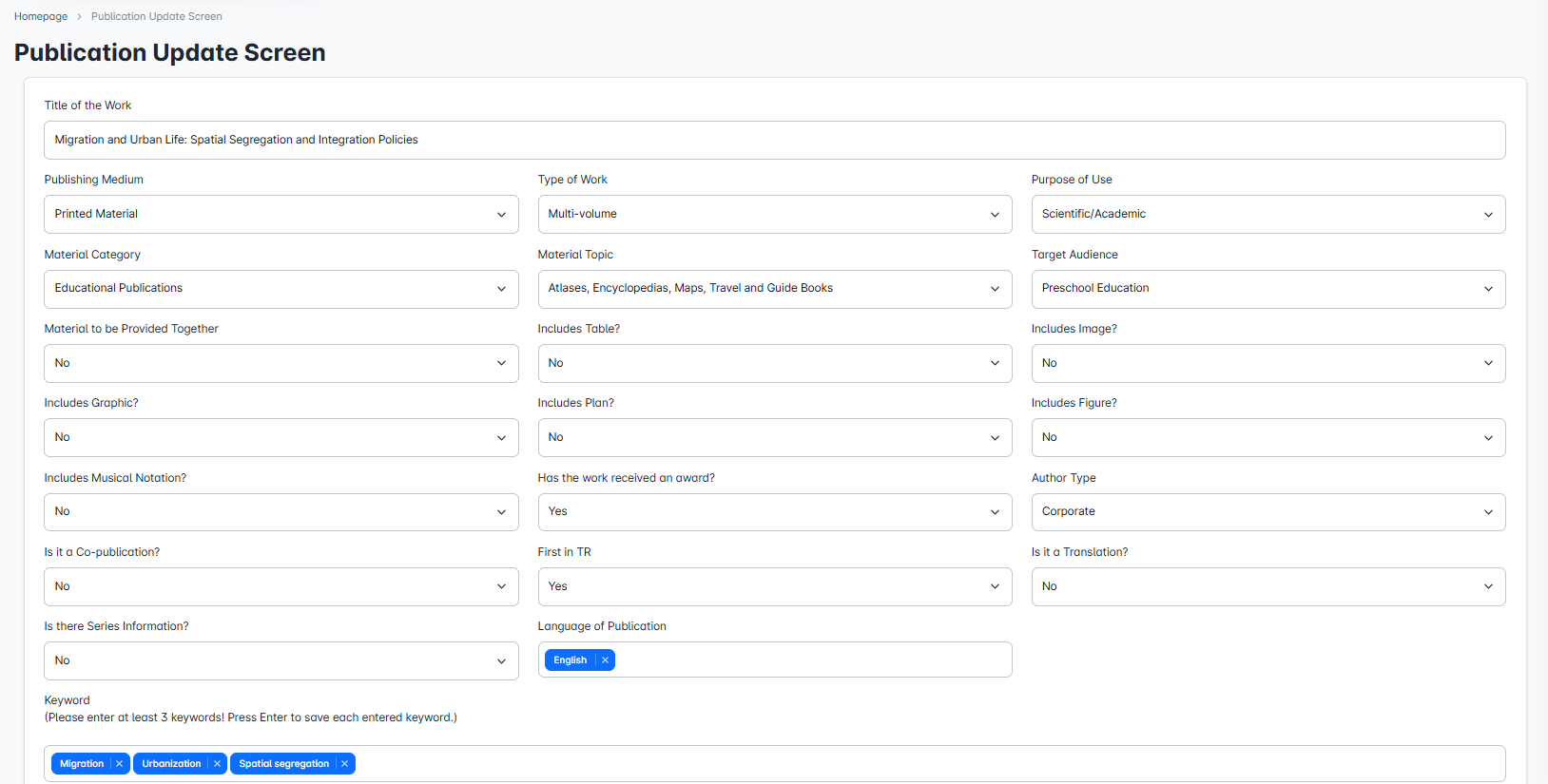
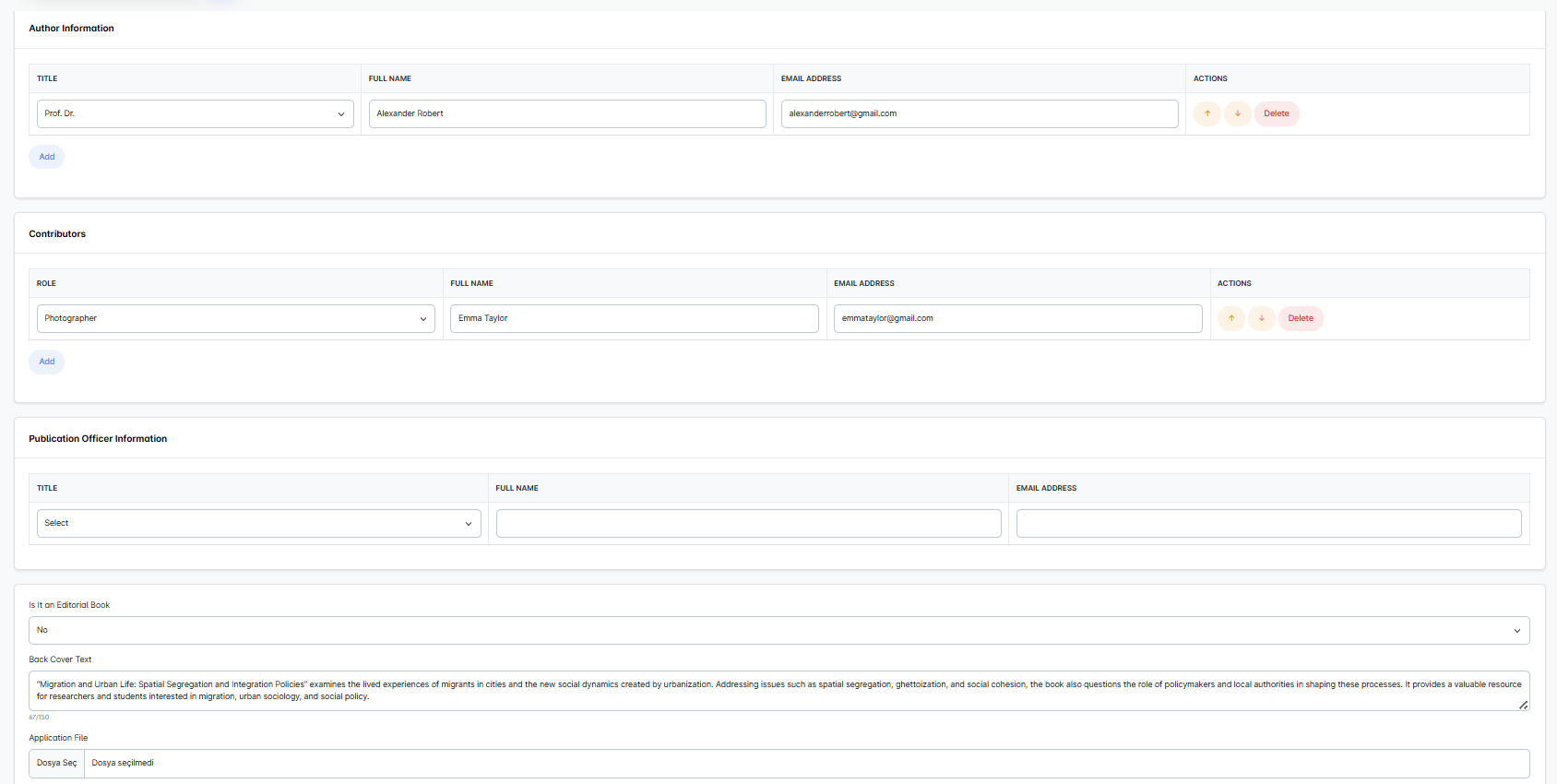
This screen is used to update the information of a publication previously added to the system. Changes can be made to details such as publication type, category, keywords, authors, or contributors. In addition, the submission file and the back-cover text can also be revised from this screen.
The purpose is to ensure that publication information remains up to date and that corrections can be made when necessary.
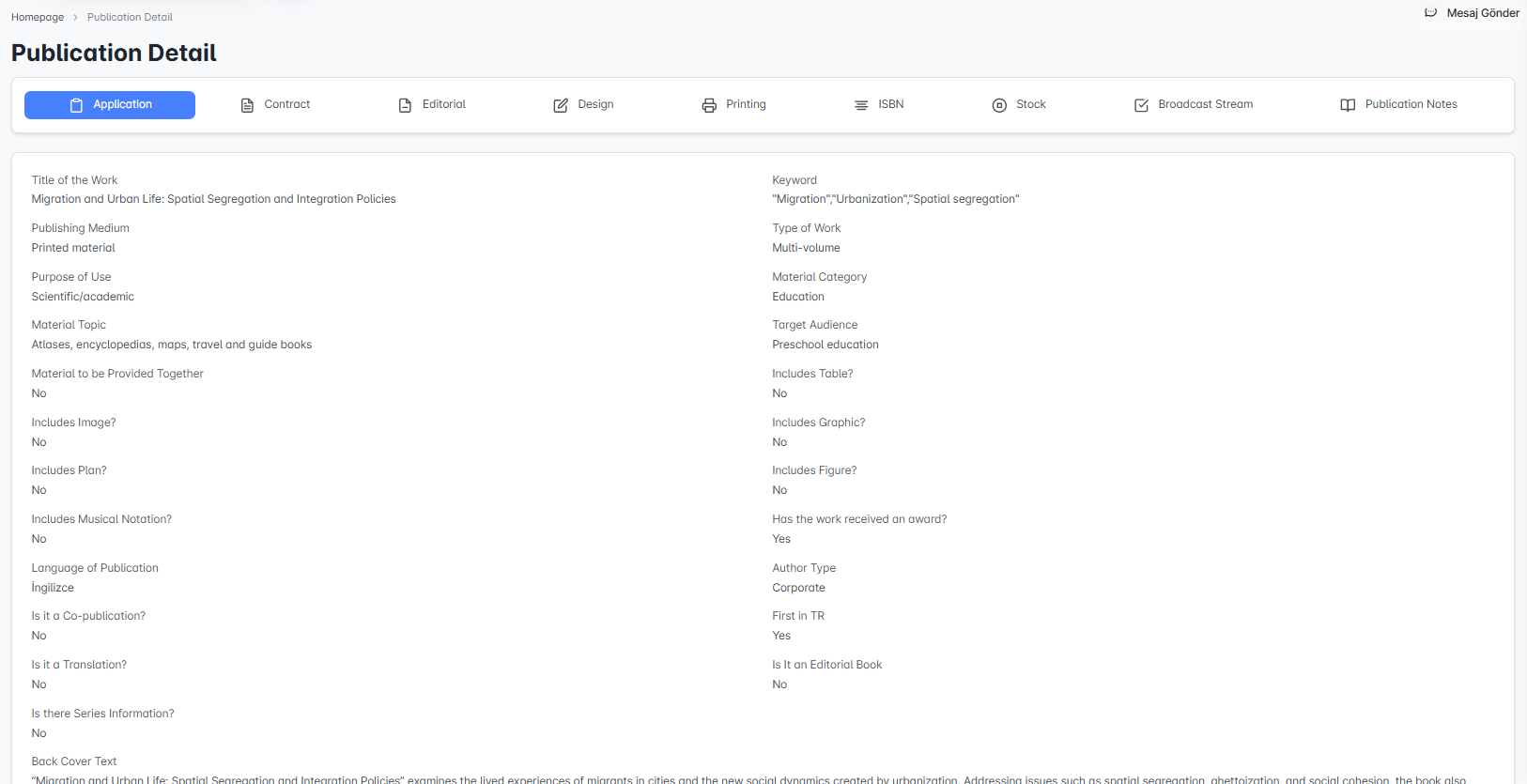
This screen provides a detailed view of all information related to the selected publication. From the submission process to acceptance, from the back-cover text to the language used, all details are displayed here. In addition, the detail screen is supported with sub-modules such as contracts, editorial process, design, printing, ISBN, stock management, and publication workflow.
The purpose is to provide comprehensive access to publication information and to manage all publication processes from a single point.
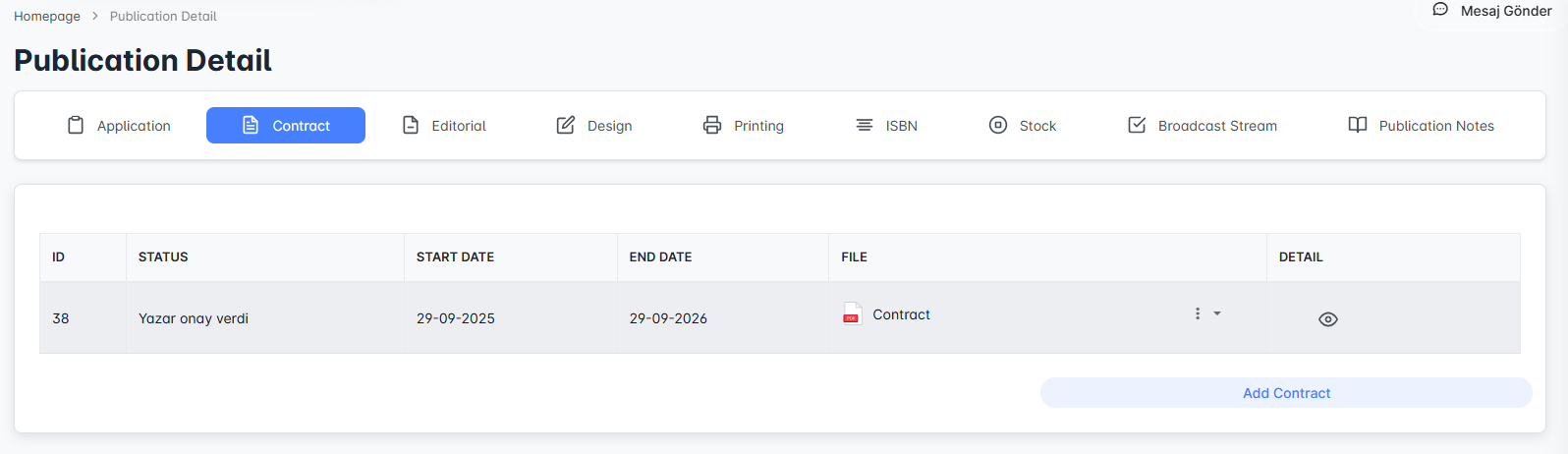
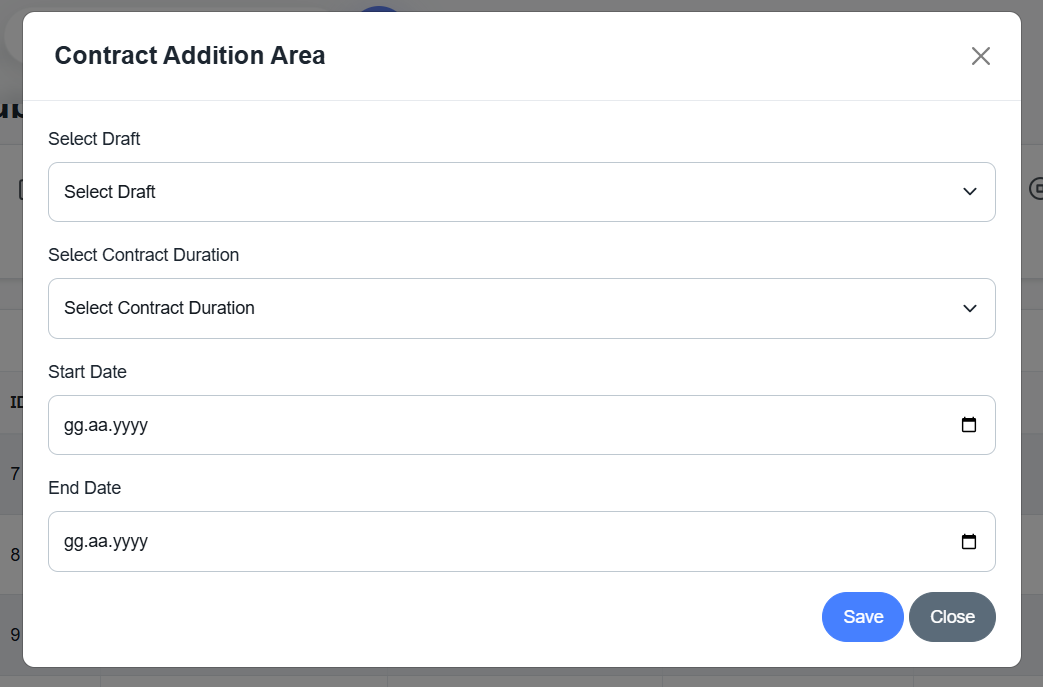
This tab is the area where contracts prepared for the publication are managed. The contract’s start and end dates, current status, and contract file related to the publication can be tracked here.
The purpose is to ensure that the legal aspect of the publication process is managed transparently and in an organized manner.
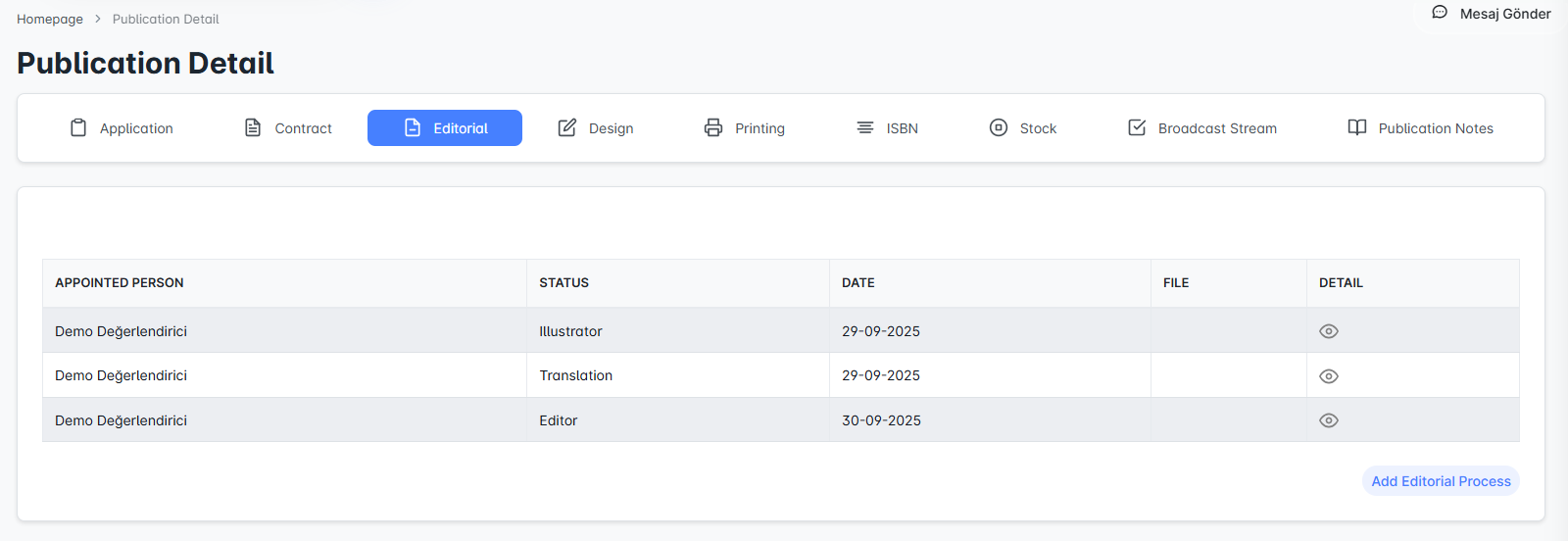
In the editorial process, the roles assigned to the work (e.g., editor, illustrator, translator) and the files uploaded at these stages are displayed in detail. Each row contains information about the assigned person, task, date, and file.
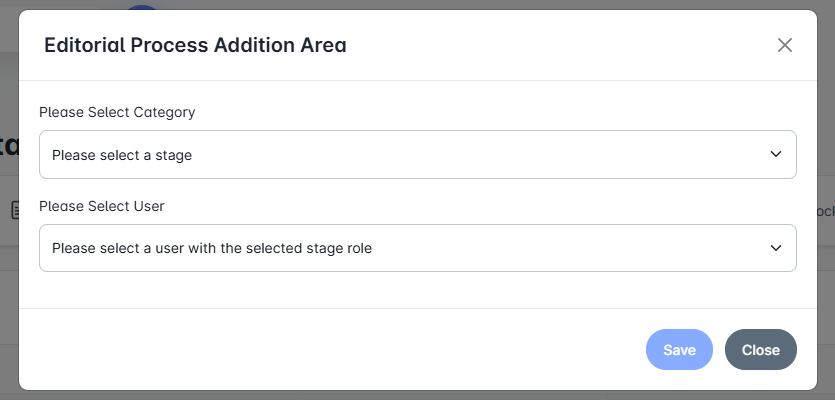
In the "Add Editorial Process" section, administrators can define a new editorial process by selecting the relevant category and user. In this way, the work is systematically guided through the necessary editorial stages.
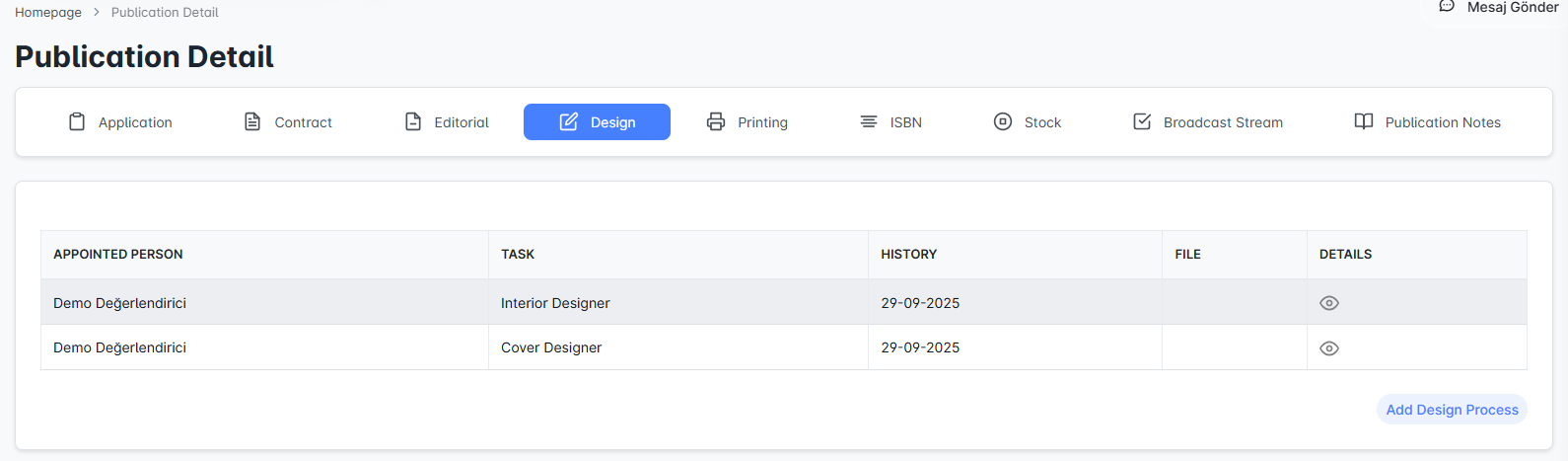
The processes for interior design and cover design of the work are displayed in separate rows. The assigned person, task, date, and uploaded design files can be viewed in detail.
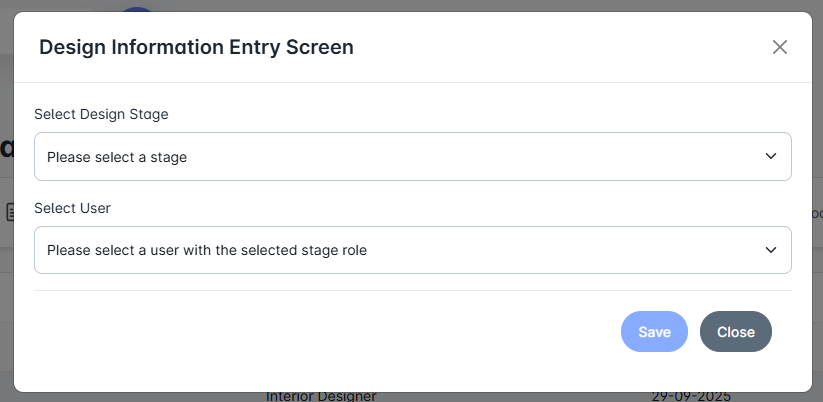
On the "Add Design Process" screen, administrators can assign a new process by selecting the design stage (e.g., interior design, cover design) and the relevant user.
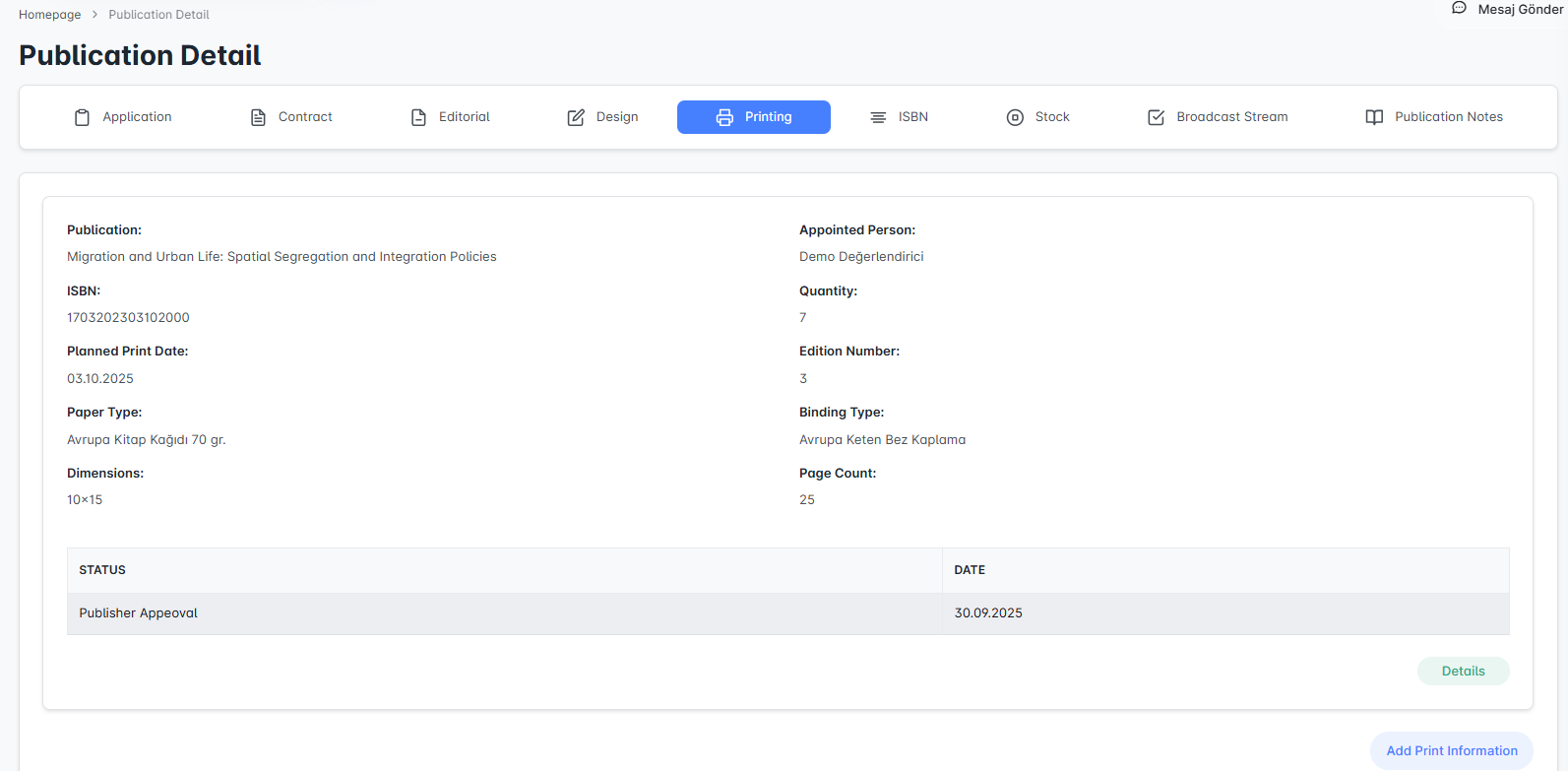
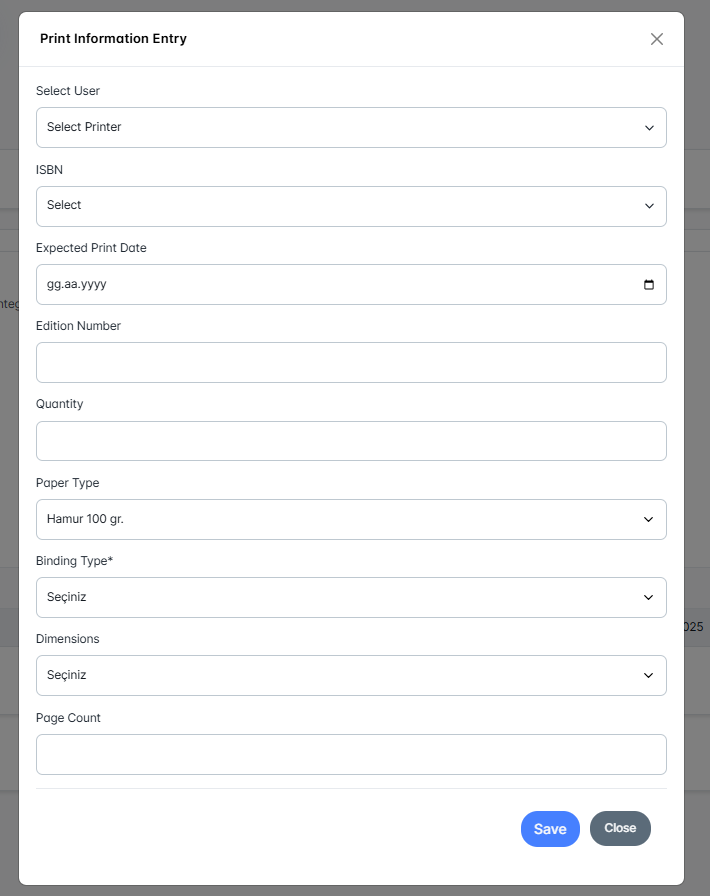
All details related to the publication’s printing process (number of copies, printing date, paper type, page count, size, and binding type) are presented on a single screen. The process is completed once printing approval is received.
On the "Add Printing Information" screen, the user is selected, the ISBN name is defined, and all technical details related to printing (quantity, paper type, size, page count, etc.) are entered. This screen ensures that the printing process is formally recorded.
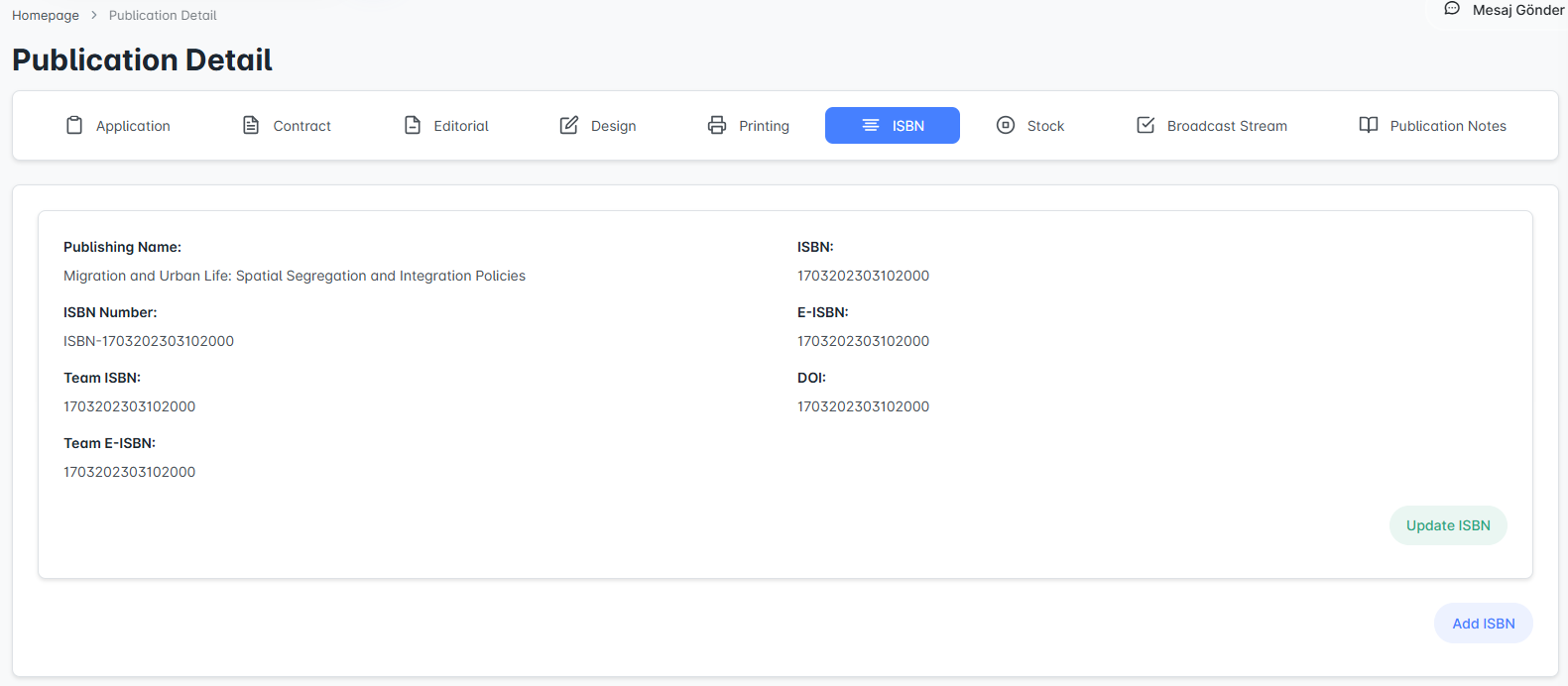
Identifier numbers related to the publication, such as ISBN, E-ISBN, Set ISBN, and DOI, are displayed. This information confirms that the publication is registered in accordance with international standards.
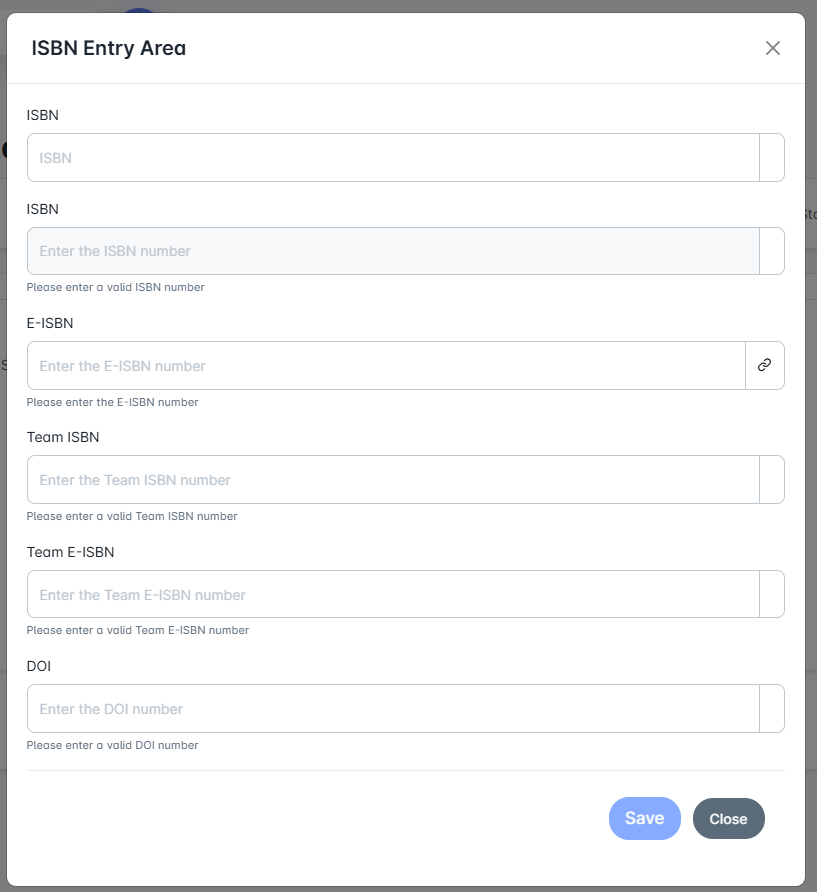
On the "Add ISBN" screen, ISBN, E-ISBN, Set ISBN, and DOI numbers are entered. The administrator can update existing information if necessary.
The total stock quantity of the publication can be tracked through the system. This allows for monitoring the number of printed and currently available copies.
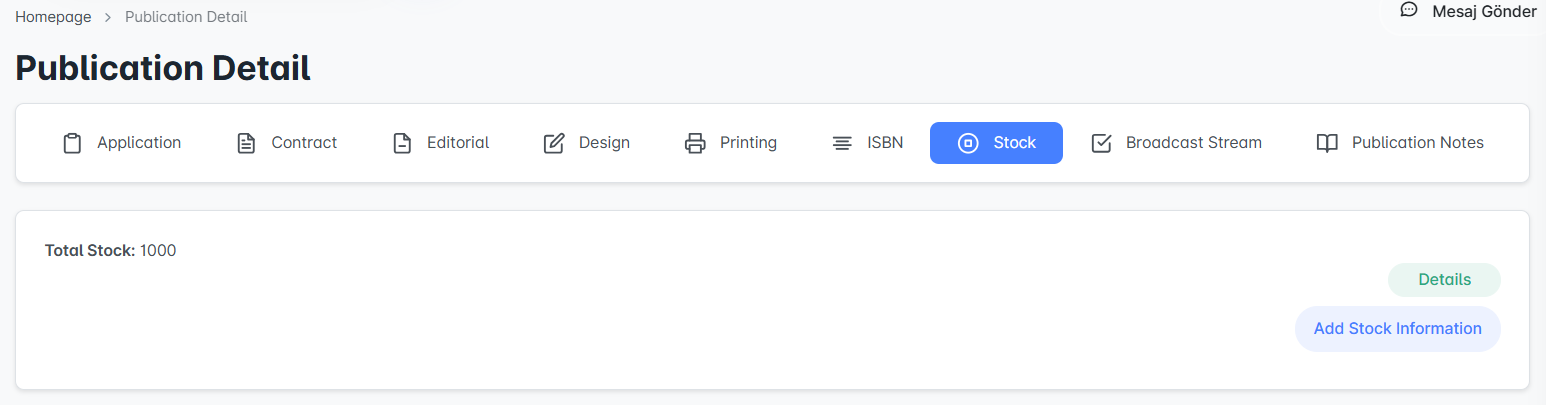
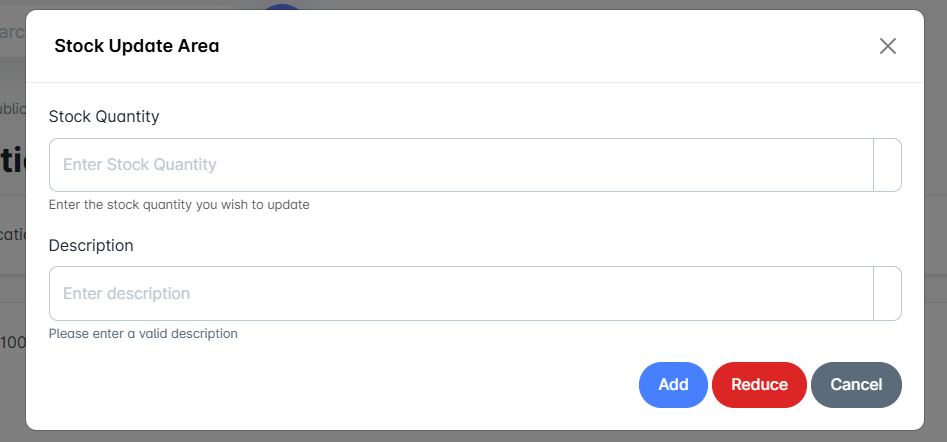
In the "Add Stock Information" section, administrators can update stock quantities and record them in the system.
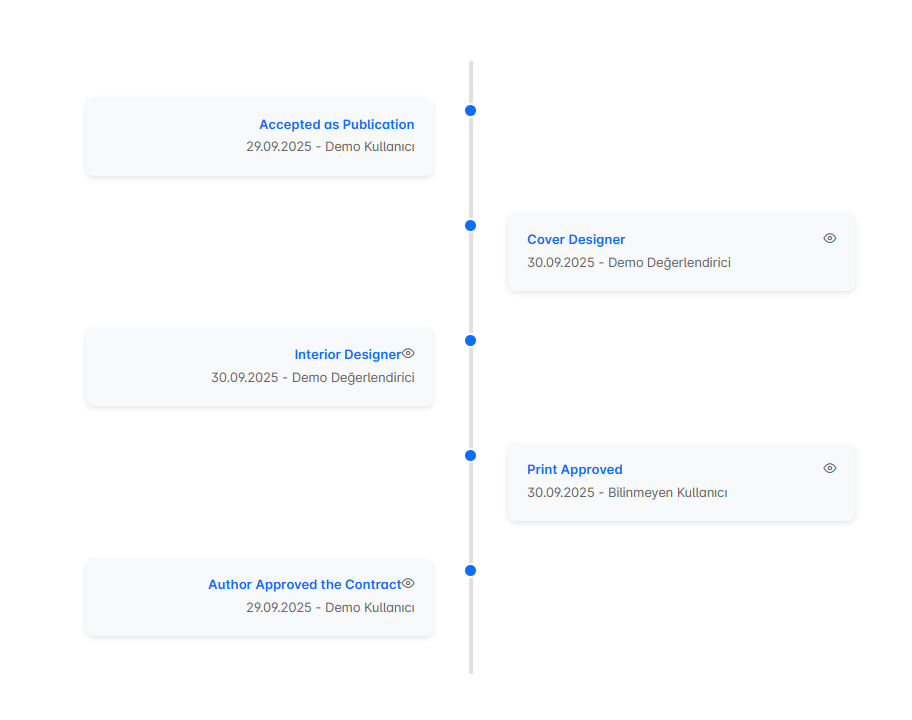
This section displays a timeline that tracks the publication process step by step. All stages, from the acceptance of the submission as a publication to cover and interior design approvals and the printing phase, are recorded chronologically. Users can follow all past actions in detail.
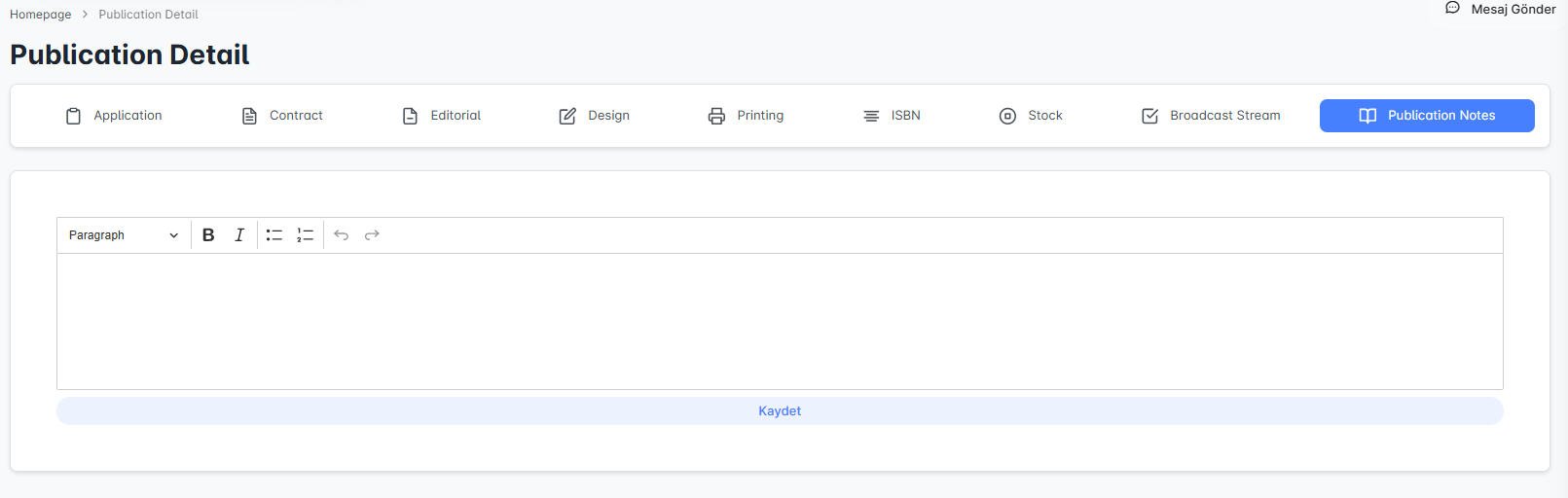
This area is designed for adding special notes related to the publication process. Users can enter comments directed to the editor, designer, or administrator, and the saved notes can be viewed in the publication process details. This ensures transparent and organized communication among all stakeholders.